Chatbot UI design for AI builders and vibe coders: 12 real app examples with copy-paste prompts
Not another design-theory post. We studied 58 chat screens from 33 popular apps and turned the best ones into prompts you can paste into Lovable, Bolt, v0 or Cursor.
UI Shots team10 min read12 examples · 12 prompts
Adding an AI assistant to your app takes an afternoon now. Making it feel as good as the ones in Amazon, TikTok or Notion is the hard part, and most of that comes down to the interface around the model, not the model itself.
This guide is for people who build: AI builders shipping with Lovable, Bolt or v0, developers working in Cursor or Claude Code, founders and vibe coders who want their chat screen to look like it came from a big product team. Designers are welcome too.
We went through 58 chatbot screens from 33 popular iOS apps and scored every app on 12 interface patterns. Below are the numbers, the 12 screens worth copying, and for each one a prompt you can paste straight into your AI builder.
How to use the prompts
- Lovable, Bolt or v0: paste one prompt per message. Build the empty state first, then send the next prompt to add the next piece.
- Cursor or Claude Code: start the prompt with "In my existing chat screen, …" so it edits your components instead of making a new page.
- Replace the [brackets] with your app's name, assistant name and real examples. Suggested prompts written for your users beat generic ones every time.
- Keep your brand. Every prompt describes layout and behaviour, not colours, so add "use my existing theme" if the tool starts restyling things.
What 33 in-app AI assistants actually do
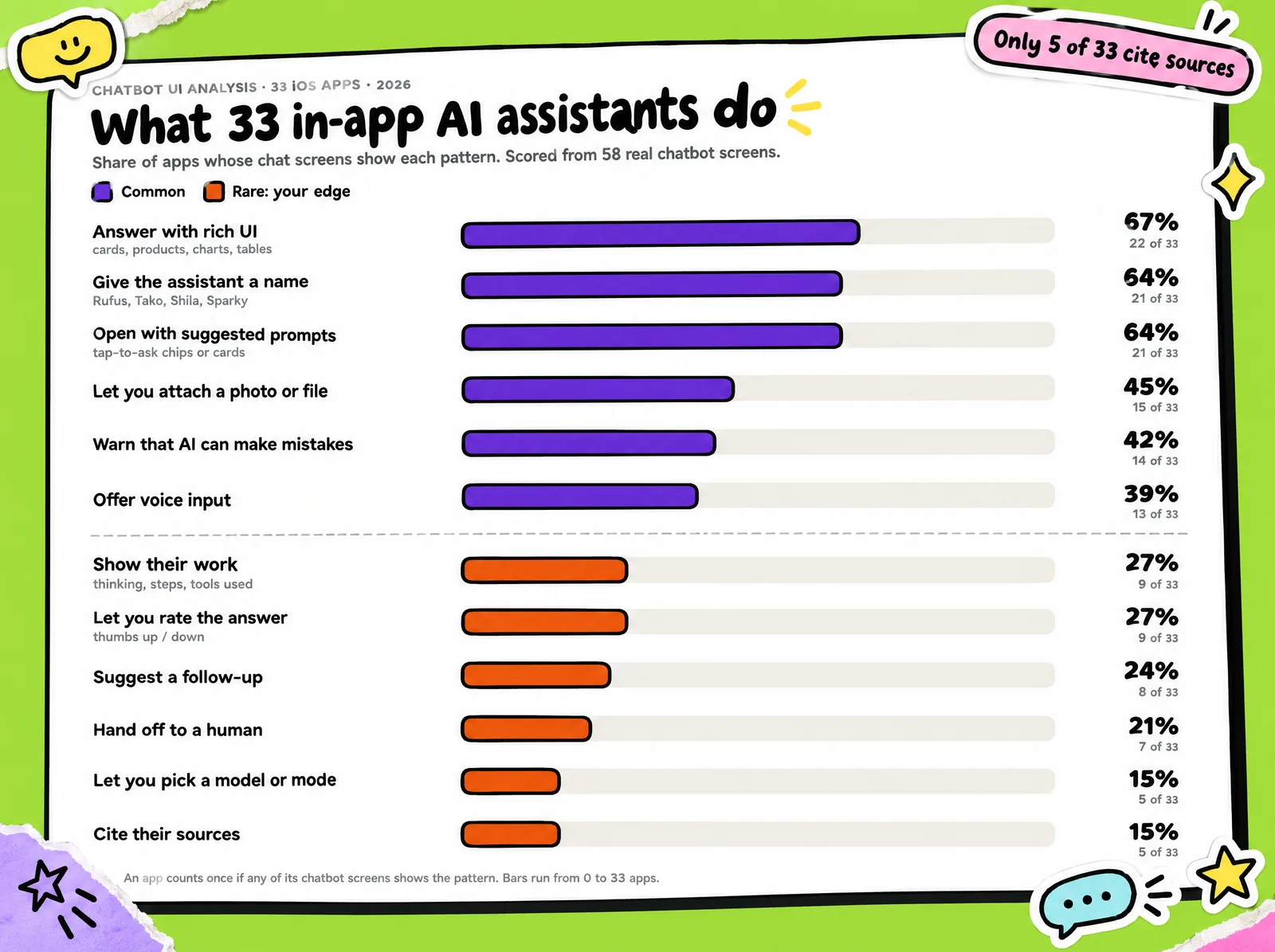
The basics are everywhere. Two in three assistants have a name, open with suggested prompts and answer with cards instead of plain text.
The trust features are rare. Only about a quarter show their work or let you rate an answer, and just 5 of 33 cite sources. Those are the cheapest wins in this guide: each one is a small component, and each makes a home-made assistant feel more serious than most big-company ones.
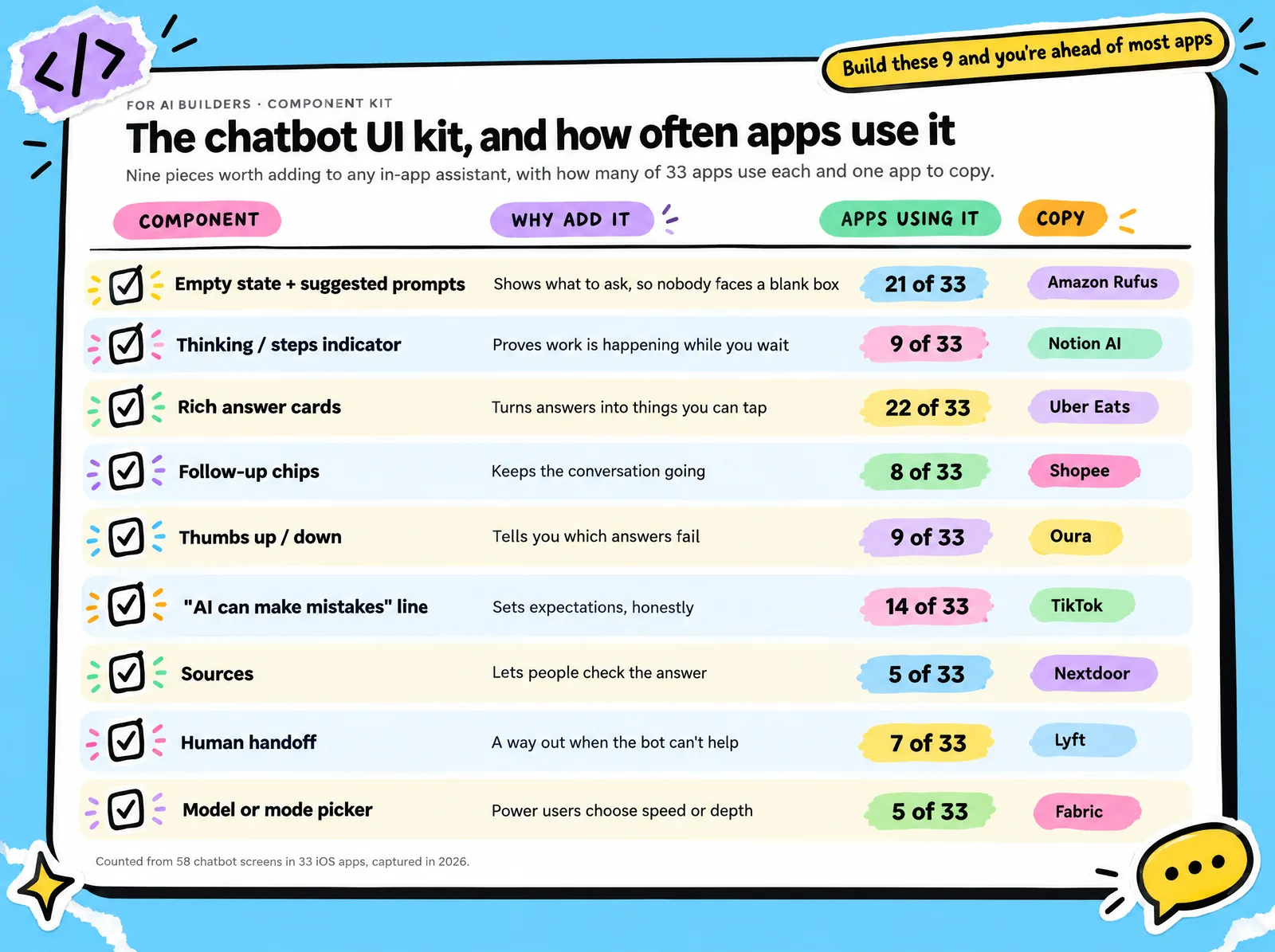
If you build only one thing from this post, build this kit. Nine components, how many of the 33 apps use each, and the app to copy:
1. Before the first message
The empty state decides whether people type anything at all. Never show a blank box.
 123

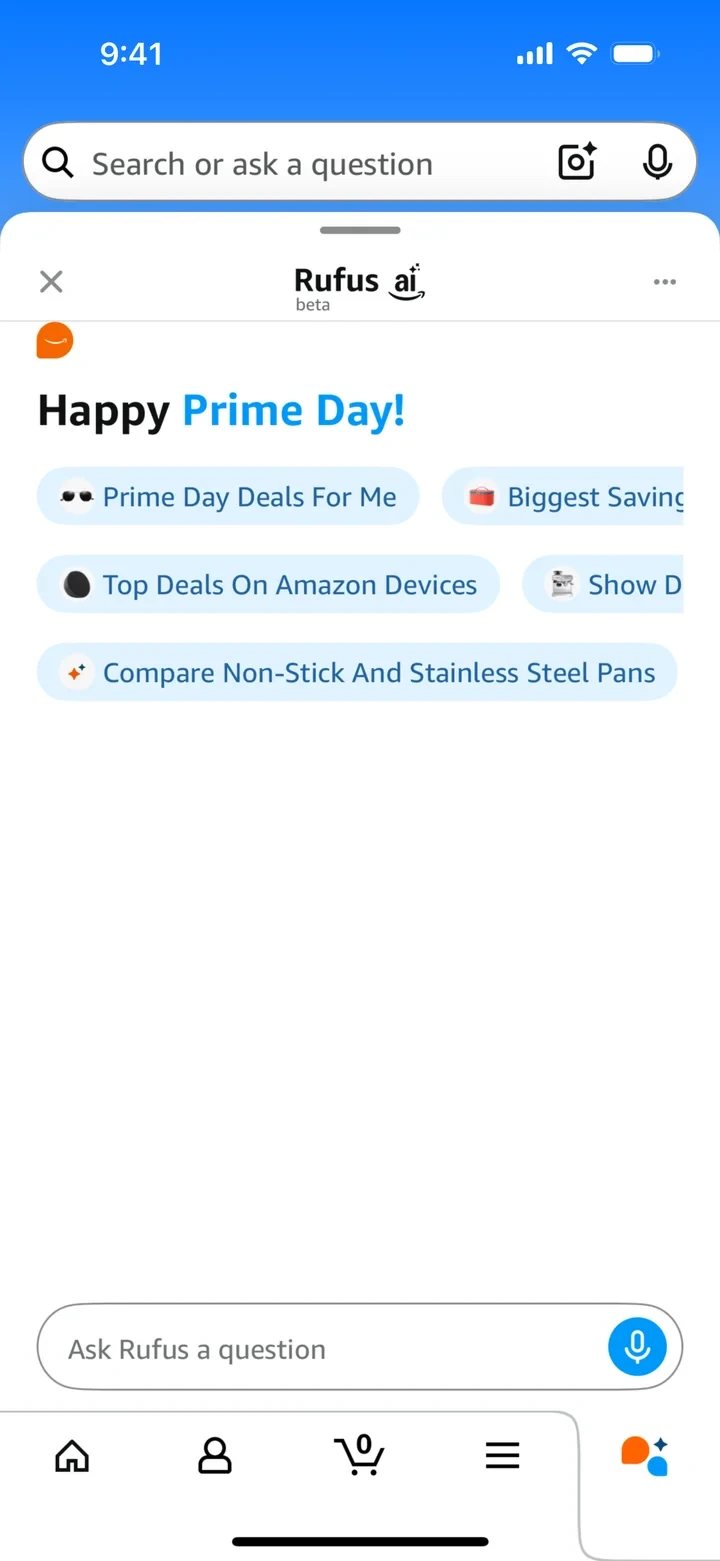
Amazon Rufus: suggestions that match the moment
Rufus opens inside the Amazon app with prompts tied to what's happening right now, not generic "Ask me anything" filler.
- 1A name and a "beta" tag. Rufus feels like a feature with a personality, and "beta" quietly lowers expectations.
- 2Timely starter chips: "Happy Prime Day!" with "Prime Day Deals For Me" and "Top Deals On Amazon Devices". One tap starts a useful conversation.
- 3"Ask Rufus a question" with a mic button. The placeholder uses the name again, and voice is one tap away.
Create the empty state of an AI shopping assistant chat sheet for [my app]. Header: assistant name "[Name]" with a small "beta" label and a close button. Then a bold greeting tied to the current context (e.g. "Happy [event]!"). Under it, 4–6 wrapping suggestion chips with an emoji or icon each, generated from the user's context (e.g. "[Event] deals for me", "Compare [product A] and [product B]"). Tapping a chip sends it as the first message. Pinned to the bottom: a rounded input with placeholder "Ask [Name] a question" and a mic button on the right. Make the chips a component that takes an array of strings.
 123

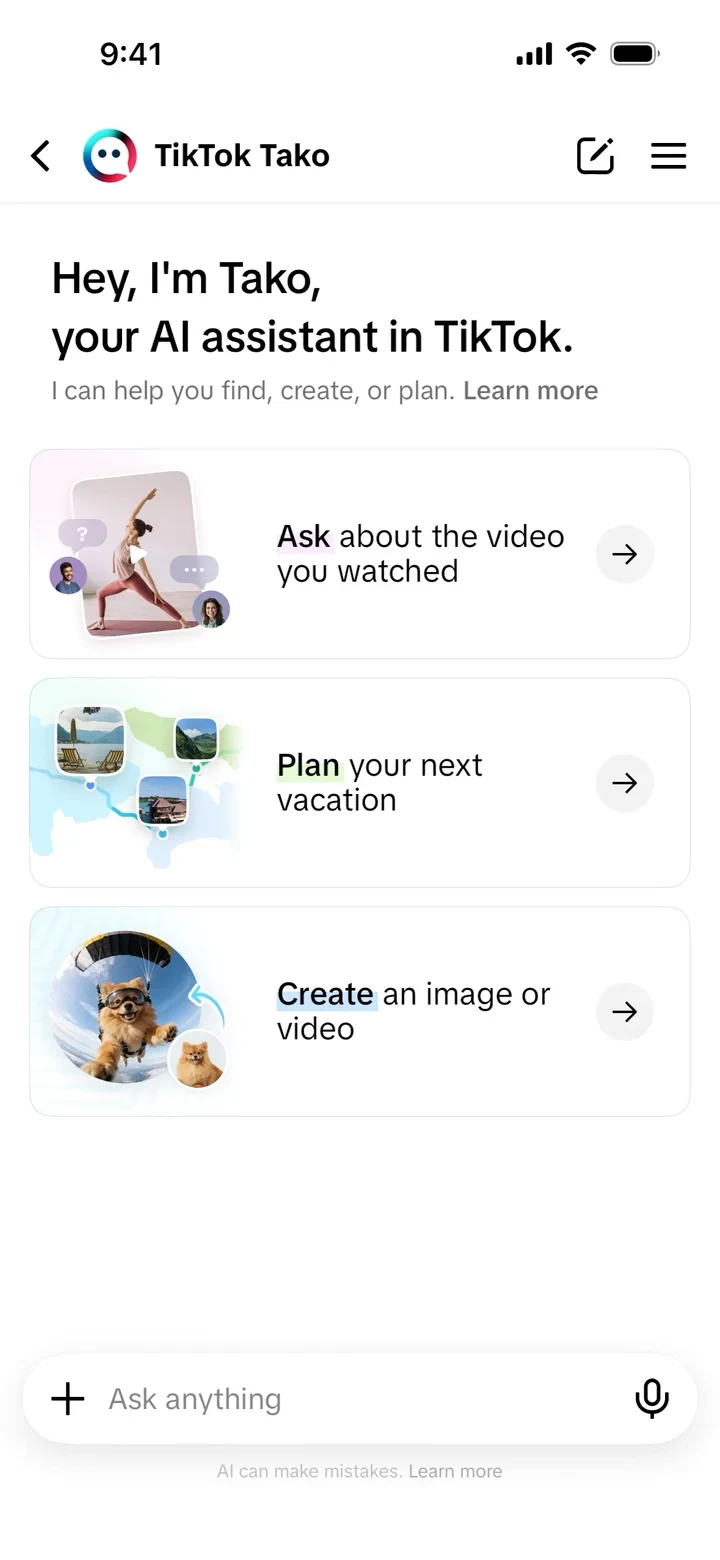
TikTok Tako: introduce the assistant, then offer three jobs
Tako's first screen answers the two questions everyone has: who is this, and what can it do?
- 1"Hey, I'm Tako, your AI assistant in TikTok." Then one line on what it does: "I can help you find, create, or plan."
- 2Three big task cards with pictures: ask about a video, plan a trip, create an image. Bigger than chips, so each feels like a real feature.
- 3A + button, a mic, and a small "AI can make mistakes" line under the input. Honest, and out of the way.
Create the empty state of an in-app AI assistant for [my app]. Top: a large two-line greeting, "Hey, I'm [Name], your AI assistant in [App]." and a grey subline "I can help you [verb], [verb], or [verb]. Learn more". Below, three full-width task cards stacked vertically, each with an illustration on the left, a bold verb phrase ("Ask about…", "Plan your next…", "Create an…") and an arrow on the right; tapping one starts that task. Bottom: an input "Ask anything" with a + button (attach) on the left and a mic on the right, and a tiny centred line under it: "AI can make mistakes. Learn more".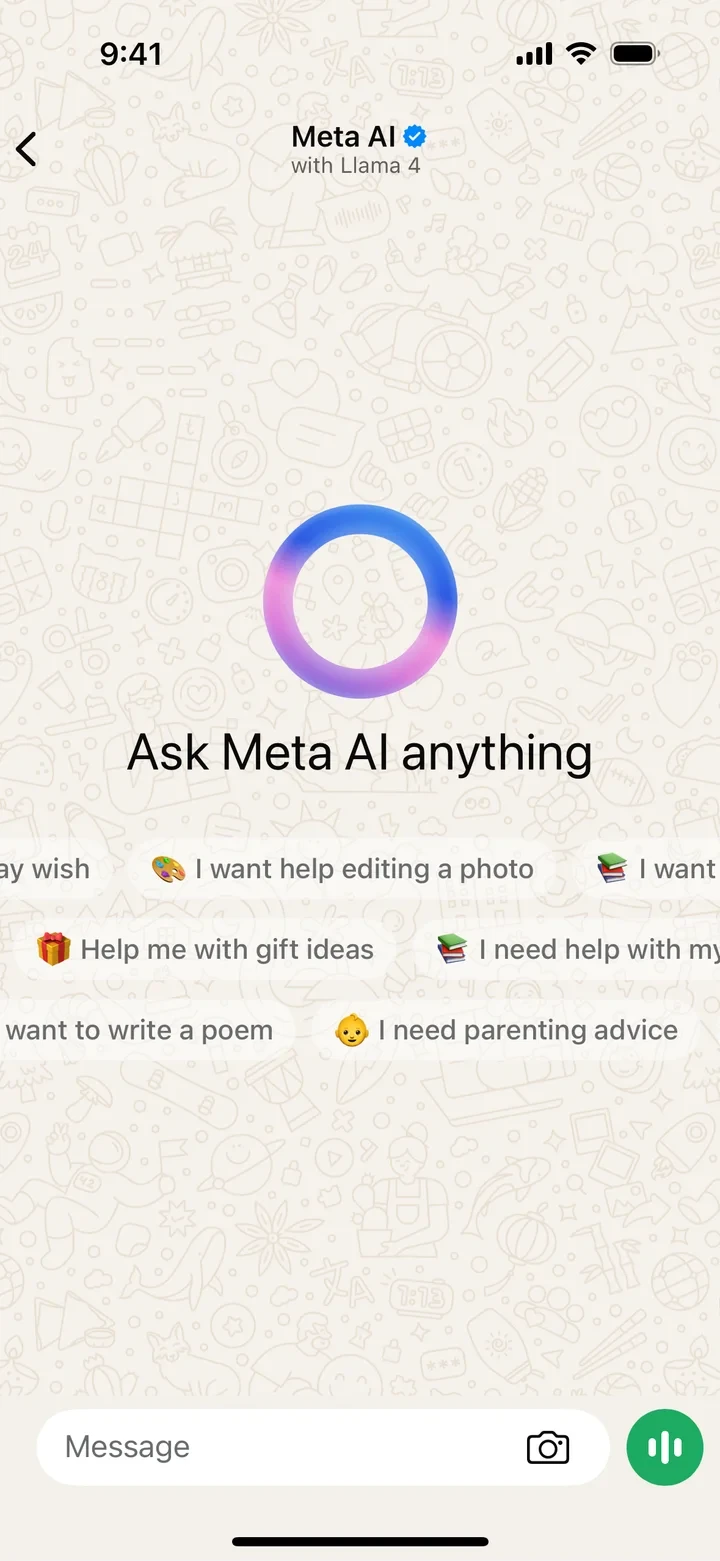 1234

Meta AI in WhatsApp: a living empty state
Meta AI's chat looks like any WhatsApp chat, until you open it and see a screen that's clearly waiting for you.
- 1"Meta AI, with Llama 4" in the header, with a verified tick. It says which model is behind it without a settings page.
- 2An animated ring and "Ask Meta AI anything". The motion shows the assistant is ready before you type.
- 3Rows of emoji chips that scroll sideways: "Help me with gift ideas", "I need parenting advice". Lots of ideas without a long list.
- 4A big voice button where the send button usually is, so talking is the default.
Create an AI chat empty state for [my app] that looks like a normal conversation thread. Header: avatar, "[Name]" with a verified badge and a grey subline "with [model]". Centre: an animated gradient ring (slow rotation and gentle pulse) above the text "Ask [Name] anything". Under it, two or three horizontally scrolling rows of suggestion chips, each with an emoji and a short first-person request ("Help me with gift ideas"). Bottom bar: "Message" input, a camera button, and a round voice button that turns into a send button once the user types. Respect reduced-motion settings.2. While the AI is working
Waiting feels shorter, and answers feel more trustworthy, when people can see what's happening.
 1234

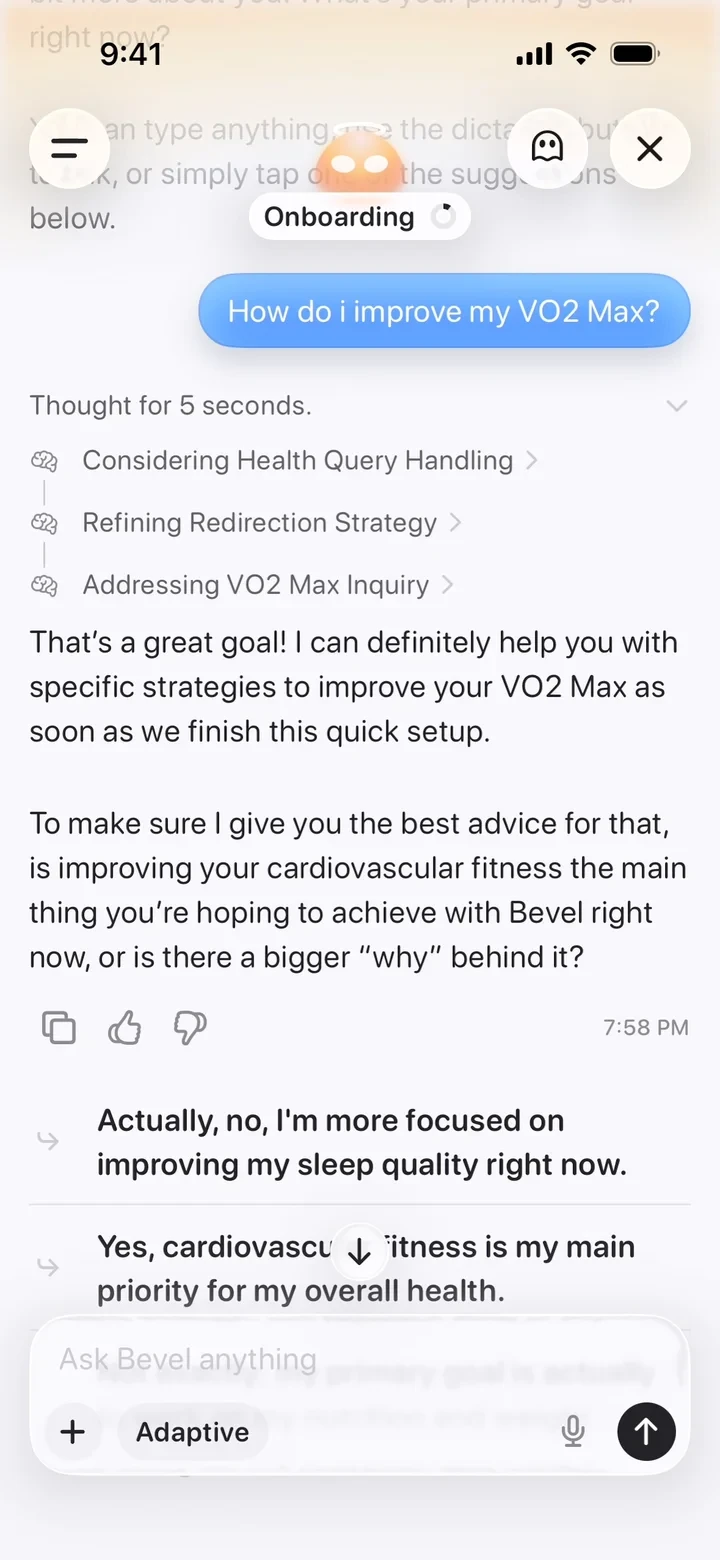
Bevel: show the thinking, then suggest the reply
Bevel's health coach shows its reasoning steps, then guesses what you'll say next.
- 1"Thought for 5 seconds" with the steps listed under it: "Considering Health Query Handling", "Refining Redirection Strategy". It can be collapsed.
- 2Copy, thumbs up and thumbs down under every answer, with a timestamp.
- 3Suggested replies written in your voice: "Actually, no, I'm more focused on improving my sleep quality right now." One tap answers the coach's question.
- 4An "Adaptive" mode picker next to the + button, for people who want a different style of answer.
In my AI chat screen, add a reasoning indicator and suggested replies. While the model is working, show a collapsible row "Thinking…" that becomes "Thought for [n] seconds" when done; expanded, it lists each reasoning step as a short grey line with a small icon and a chevron. Under every assistant message, show a row of icon buttons: copy, thumbs up, thumbs down, and the time on the right. After an answer that ends in a question, show 2–3 suggested replies as full-width tappable rows written in the user's first person. In the input bar, add a + button and a small mode pill ("Adaptive") that opens a menu of answer styles.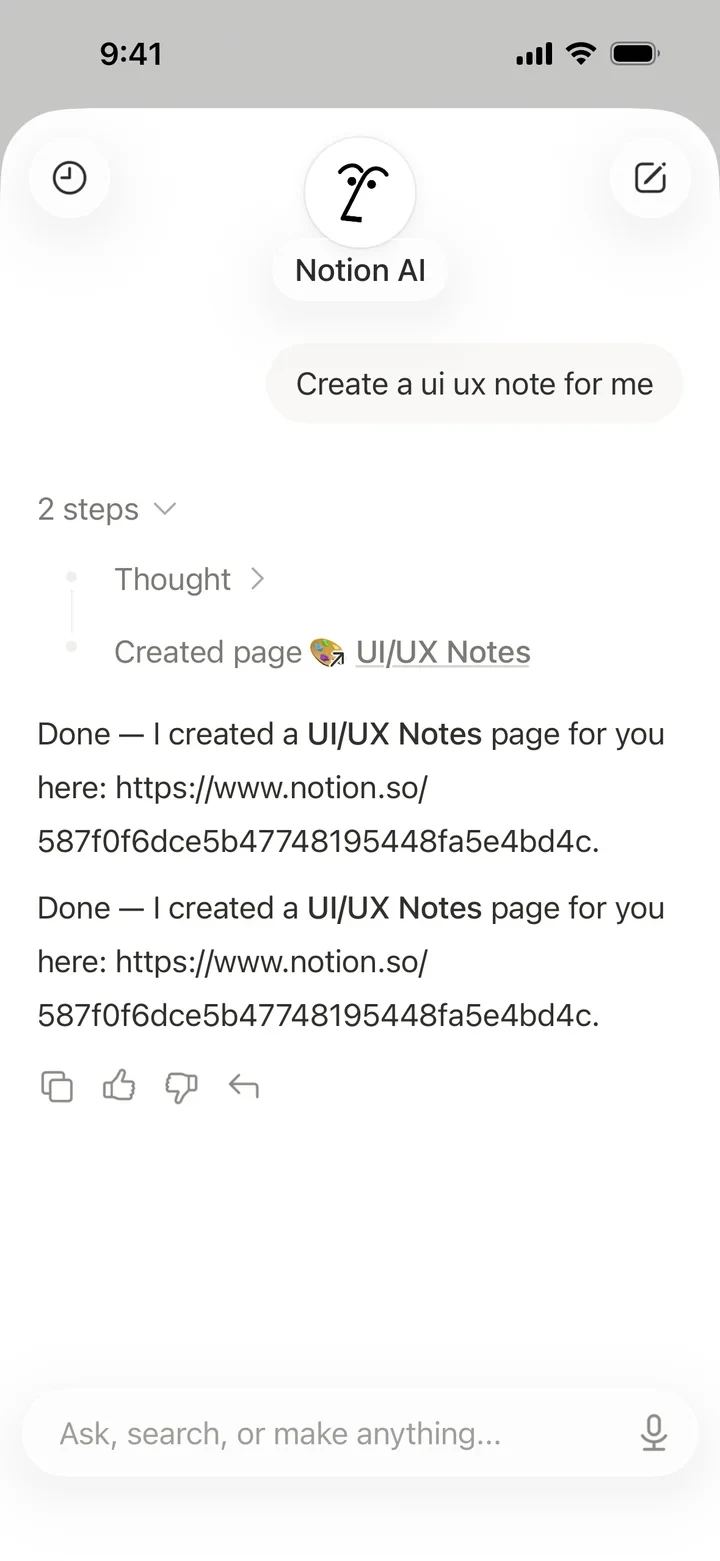 1234

Notion AI: show the steps, then show the result
When an assistant takes actions, people want proof. Notion AI shows each step and links to what it made.
- 1"2 steps", expanded: "Thought", then "Created page: UI/UX Notes". The action is listed like a receipt.
- 2"Done — I created a UI/UX Notes page for you here:" with the link. The answer confirms what changed and where.
- 3Copy, thumbs up, thumbs down and retry under the answer.
- 4"Ask, search, or make anything…" The placeholder tells you this assistant can act, not just chat.
In my AI agent chat for [my app], render tool calls as a collapsible steps list above the answer: a header "[n] steps" with a chevron; each step is a row with an icon and a label ("Thought", "Created page [name]", "Searched [source]"), and created items are links. After the steps, the assistant message starts with "Done —" and states what changed with a link to it. Under each message: copy, thumbs up, thumbs down and retry buttons. Input placeholder: "Ask, search, or make anything…" with a mic button.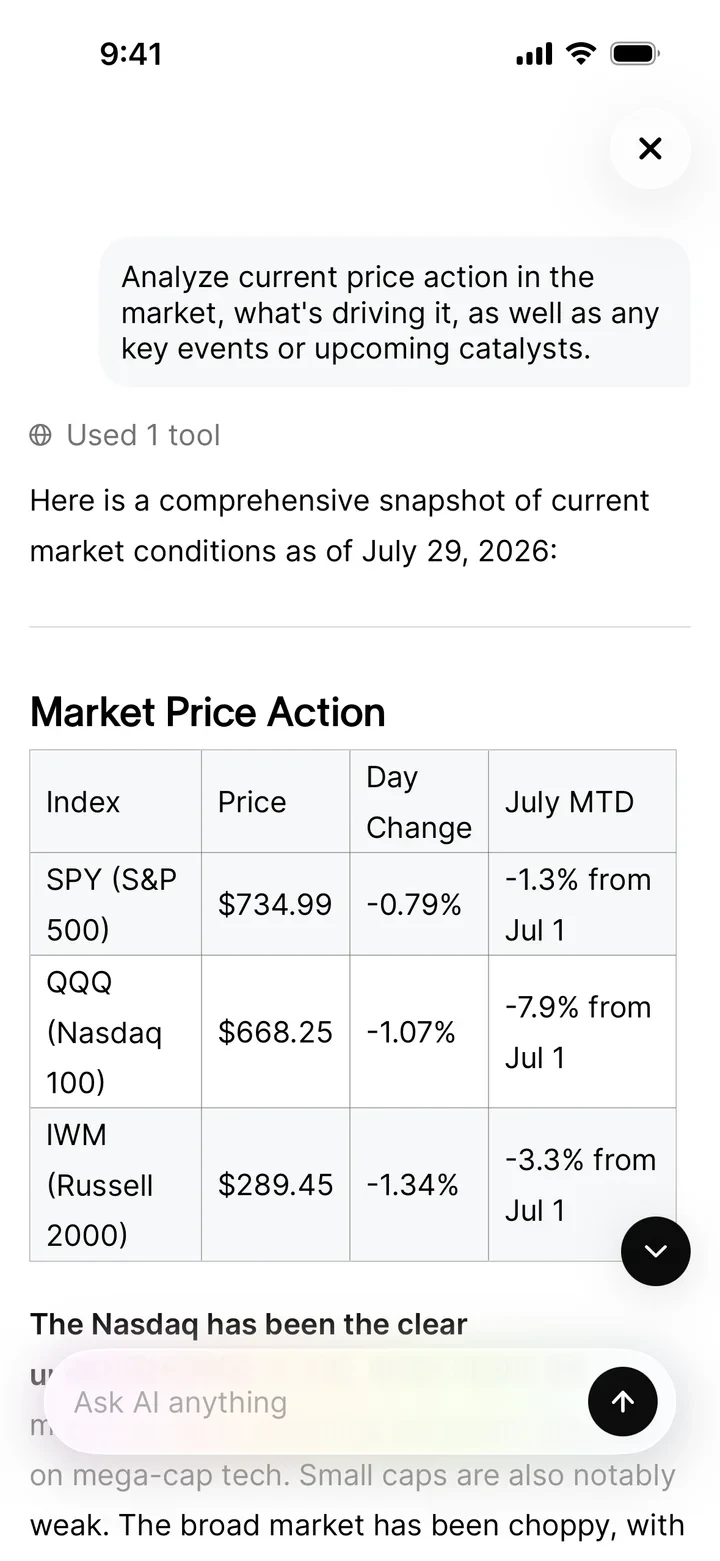 123

Public: say which tool it used, then answer in a table
Public's investing assistant is a good model for any data-heavy chatbot.
- 1"Used 1 tool" sits above the answer, so you know the numbers came from live data, not memory.
- 2A real table: index, price, day change and month-to-date for SPY, QQQ and IWM. Much faster to scan than paragraphs.
- 3A glowing "Ask AI anything" input with a round send button, floating over the answer.
In my AI chat for [my app], when the assistant uses a tool or API, show a small grey line above its answer: a tool icon and "Used [n] tool(s)" (tappable to show which). Render any comparison data in the answer as a proper table component (header row, aligned numbers, negative values in red, positive in green) instead of prose, followed by a short summary paragraph. Keep a floating input at the bottom, "Ask AI anything", with a subtle animated gradient border and a round send button, and a scroll-to-bottom button when the user scrolls up.
3. Answers that are UI, not walls of text
The best assistants answer with things you can tap: cards, charts, lists, products.
 1234

Perplexity: images first, then a structured answer
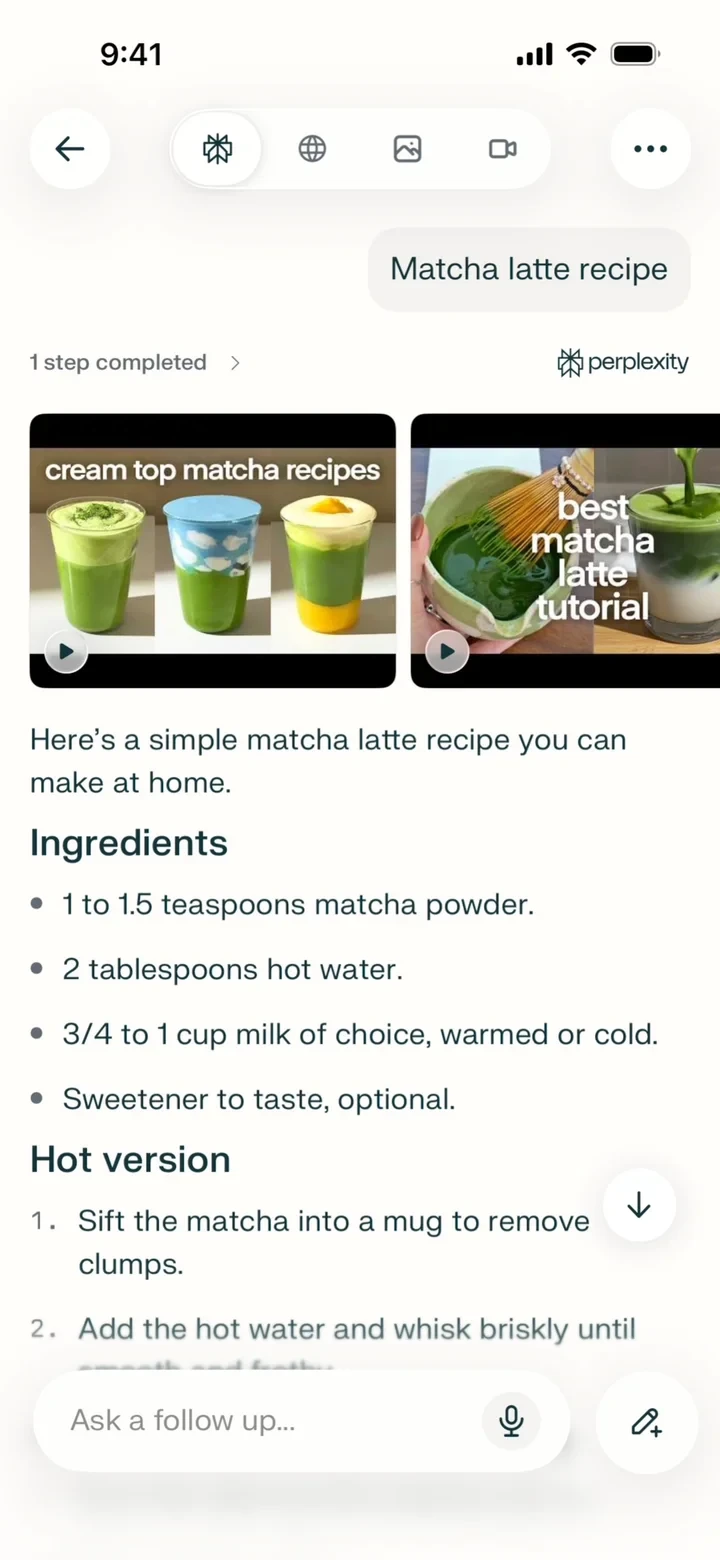
A recipe question gets a recipe page, not a paragraph.
- 1"1 step completed" and the source logo above the answer, so you know it looked something up.
- 2Video and image cards at the top ("cream top matcha recipes", "best matcha latte tutorial"). You see the result before you read.
- 3Real headings and bullets: Ingredients, Hot version, numbered steps. It reads like a page.
- 4"Ask a follow up…" instead of a generic placeholder, with mic and new-thread buttons.
Make my AI chat answers render as rich content for [my app]. Above each answer: "[n] step(s) completed" with a chevron and the source's favicon on the right. Then, when the answer has media, a horizontal row of image or video cards with a caption on each. Then the answer as formatted markdown with real headings, bullet lists and numbered steps (not one paragraph). The input after an answer says "Ask a follow up…" and has a mic button and a new-thread button.
 123
Oura Advisor: put the user's own data in the chat
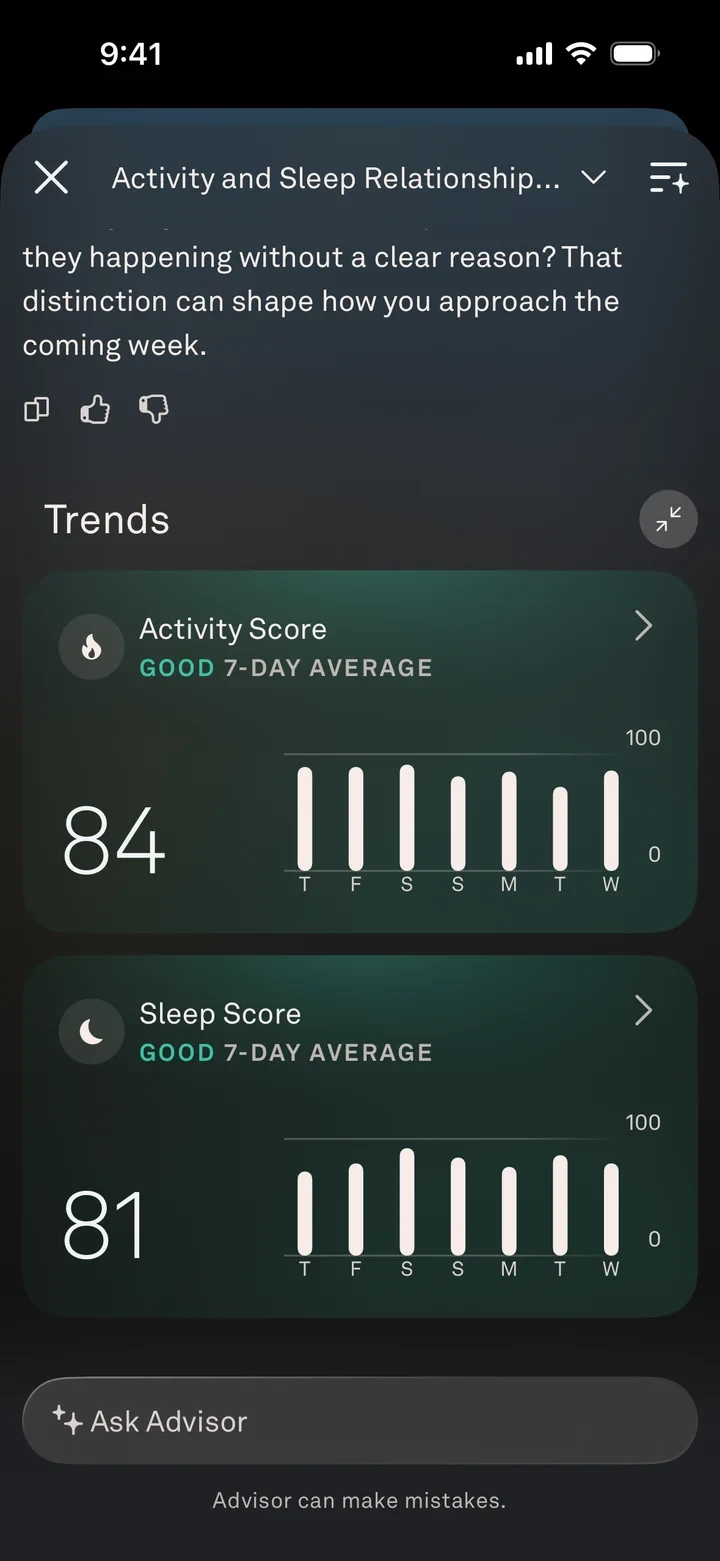
Ask Oura's Advisor about activity and sleep, and the answer includes your real charts.
- 1Copy, thumbs up and thumbs down under each answer, small and grey.
- 2Live data cards inside the conversation: Activity Score 84 and Sleep Score 81, each with a 7-day bar chart and a "Good" rating. You can tap through to the full screen.
- 3"Ask Advisor", with "Advisor can make mistakes." under it. The disclaimer uses the assistant's name.
In my AI chat for [my app], let the assistant embed the user's own data as cards inside its answer. Make a card component: icon, metric name, a small coloured rating with its period ("GOOD · 7-DAY AVERAGE"), the value in large type on the left and a 7-day mini bar chart on the right with weekday labels; the whole card links to the full metric screen. Put a "Trends" heading above a stack of these cards. Under each assistant message: copy, thumbs up, thumbs down. Dark theme. Under the input ("Ask [Name]"), a small line: "[Name] can make mistakes."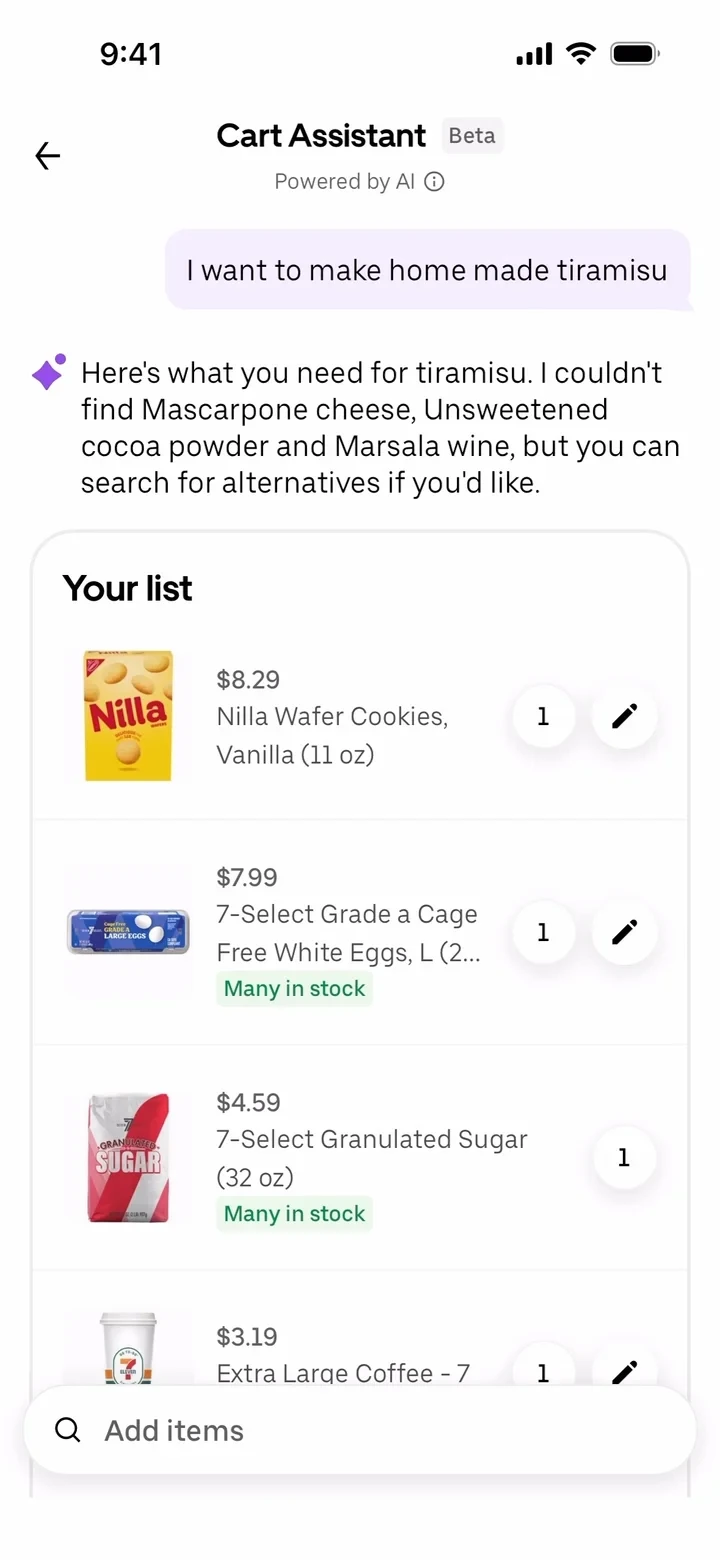 1234

Uber Eats Cart Assistant: the answer is a shopping list
Ask for tiramisu ingredients and the assistant builds an editable cart.
- 1"Cart Assistant, Beta, Powered by AI". A job title instead of a mascot. You know exactly what it's for.
- 2It says what it couldn't do: "I couldn't find Mascarpone cheese… but you can search for alternatives."
- 3"Your list" with prices, quantities and an edit button on every item. The chat's output is a working UI.
- 4"Add items" stays at the bottom, so you can keep shopping by typing.
Build an AI cart assistant for [my app]. Header: "Cart Assistant" with a "Beta" pill and a grey "Powered by AI" subline with an info icon. The user's request appears as a right-aligned bubble. The assistant replies with one short paragraph that also lists anything it couldn't find, then a "Your list" card: each row has a product image, price, name and size, stock status in green, a quantity stepper and an edit (pencil) button. The input at the bottom says "Add items". Return the list from the model as structured JSON and render it with the list component, not as text.
4. Trust, context and a way out
Small details that make people believe the answer, and help them when the bot can't.
 1234

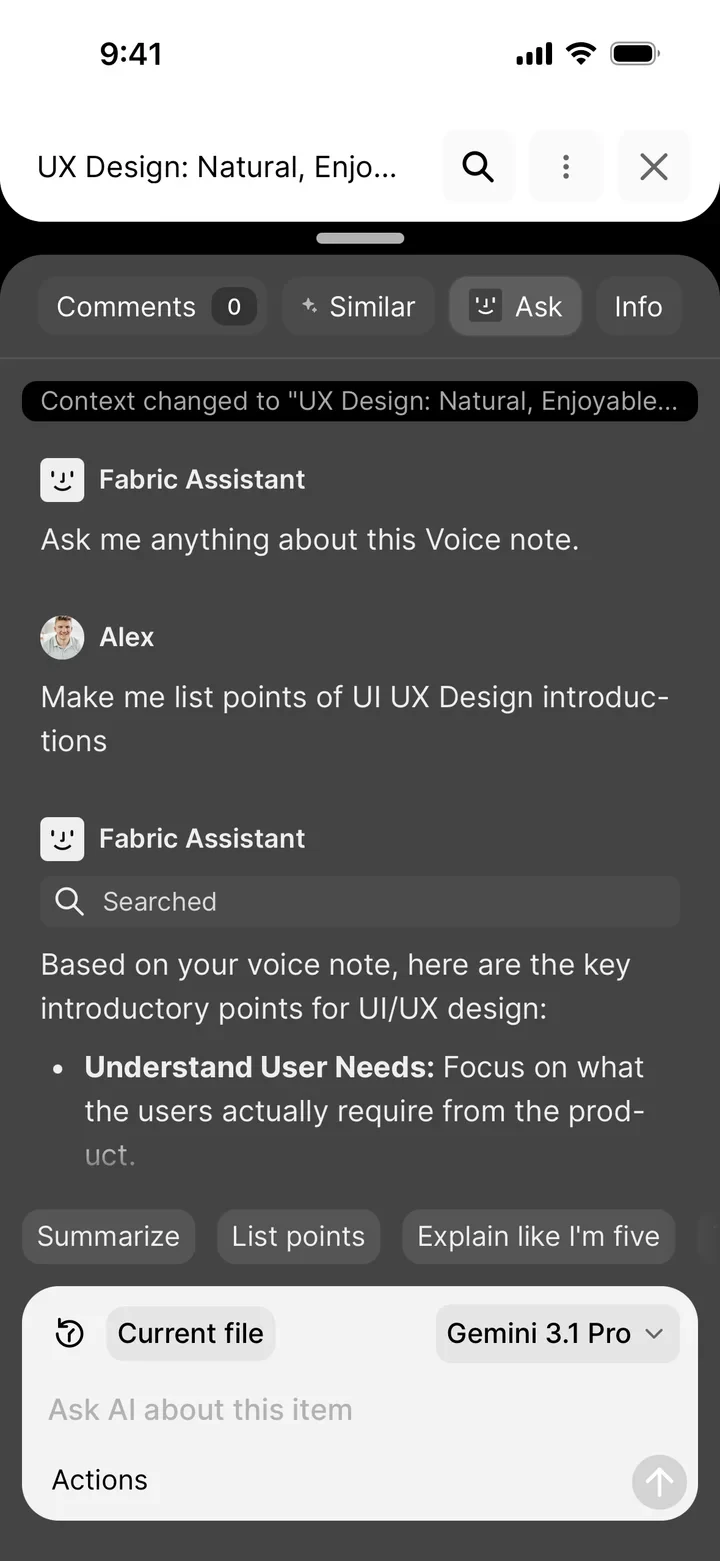
Fabric: show the context and let people pick the model
Fabric's assistant lives next to your notes, and it always tells you what it's looking at.
- 1"Context changed to 'UX Design: Natural, Enjoyable…'" appears in the thread when you open a different item. No mystery about what the AI can see.
- 2"Searched" above the answer, then the answer in bullets.
- 3Quick actions: Summarize, List points, Explain like I'm five. The most common requests are one tap.
- 4"Current file" and "Gemini 3.1 Pro" above the input: what's in scope, and which model will answer.
Add a context-aware AI panel to [my app]. When the user switches item, insert a small system line in the thread: "Context changed to "[item title]"". Assistant messages show a sender row (icon + "[Name] Assistant") and, when they searched, a grey "Searched" row above the answer. Above the input, a row of quick-action chips: Summarize, List points, Explain like I'm five. In the input area, a bar with a scope pill ("Current file", tappable to change) and a model dropdown on the right ("[model name] ▾"). Placeholder: "Ask AI about this item".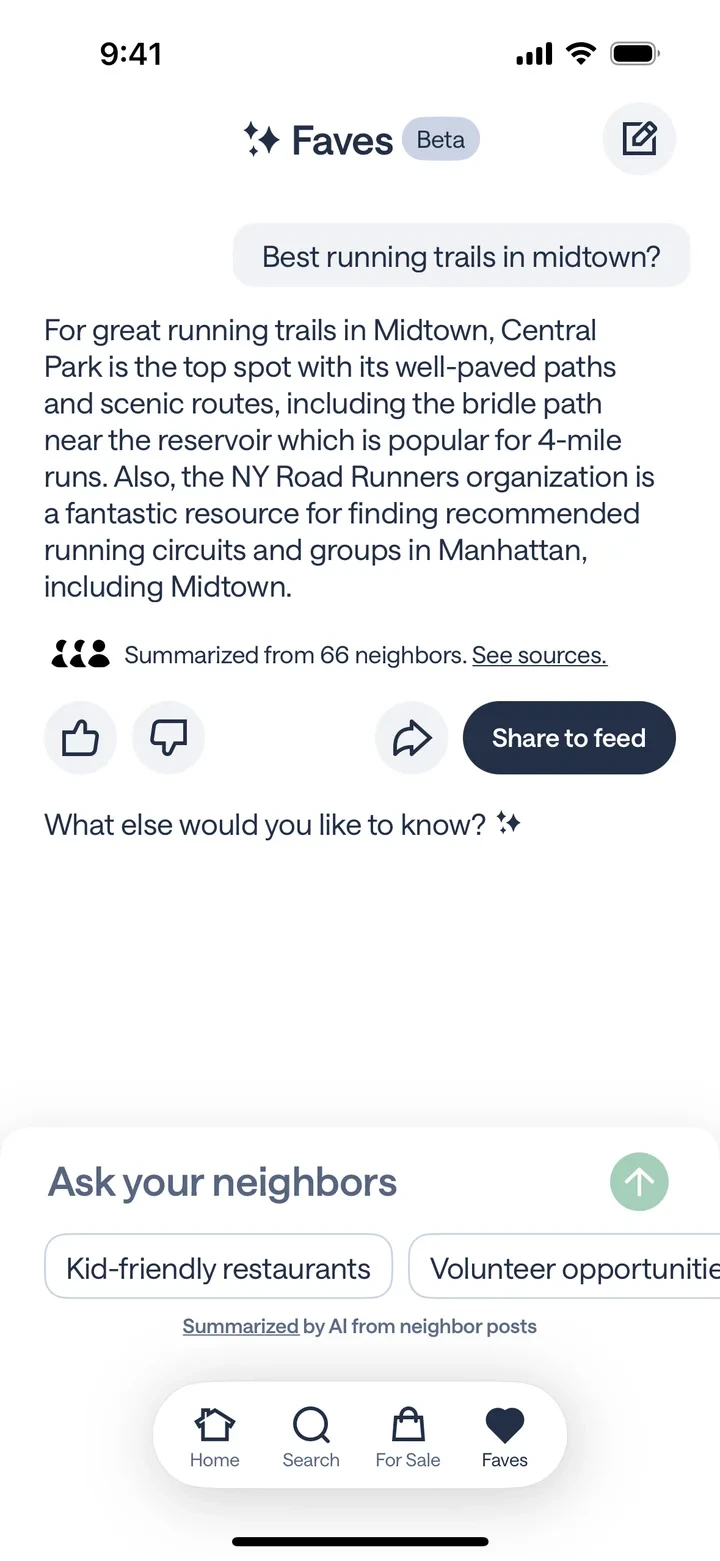 1234

Nextdoor Faves: say where the answer came from
Nextdoor's AI answers local questions from neighbours' posts, and it shows its sources.
- 1"Faves" with a "Beta" badge. A feature name, not a chatbot, and it's honest about being new.
- 2"Summarized from 66 neighbors. See sources." with neighbour avatars. Proof in one line.
- 3Thumbs up, thumbs down, share, and "Share to feed". A good answer can become a post.
- 4"Ask your neighbors" with topic chips ("Kid-friendly restaurants", "Volunteer opportunities") and "Summarized by AI from neighbor posts".
For my AI answers in [my app], add a sources row under each answer: a stack of 3 small avatars or favicons, the text "Summarized from [n] [sources]" and a "See sources" link that opens a sheet listing them. Under that, an action row: thumbs up, thumbs down, share, and a primary pill button "[Share to feed]". Then a line "What else would you like to know?" with a sparkle icon. At the bottom, an input with the placeholder "Ask [your community]", topic chips under it, and a tiny note "Summarized by AI from [source type]".
 1234

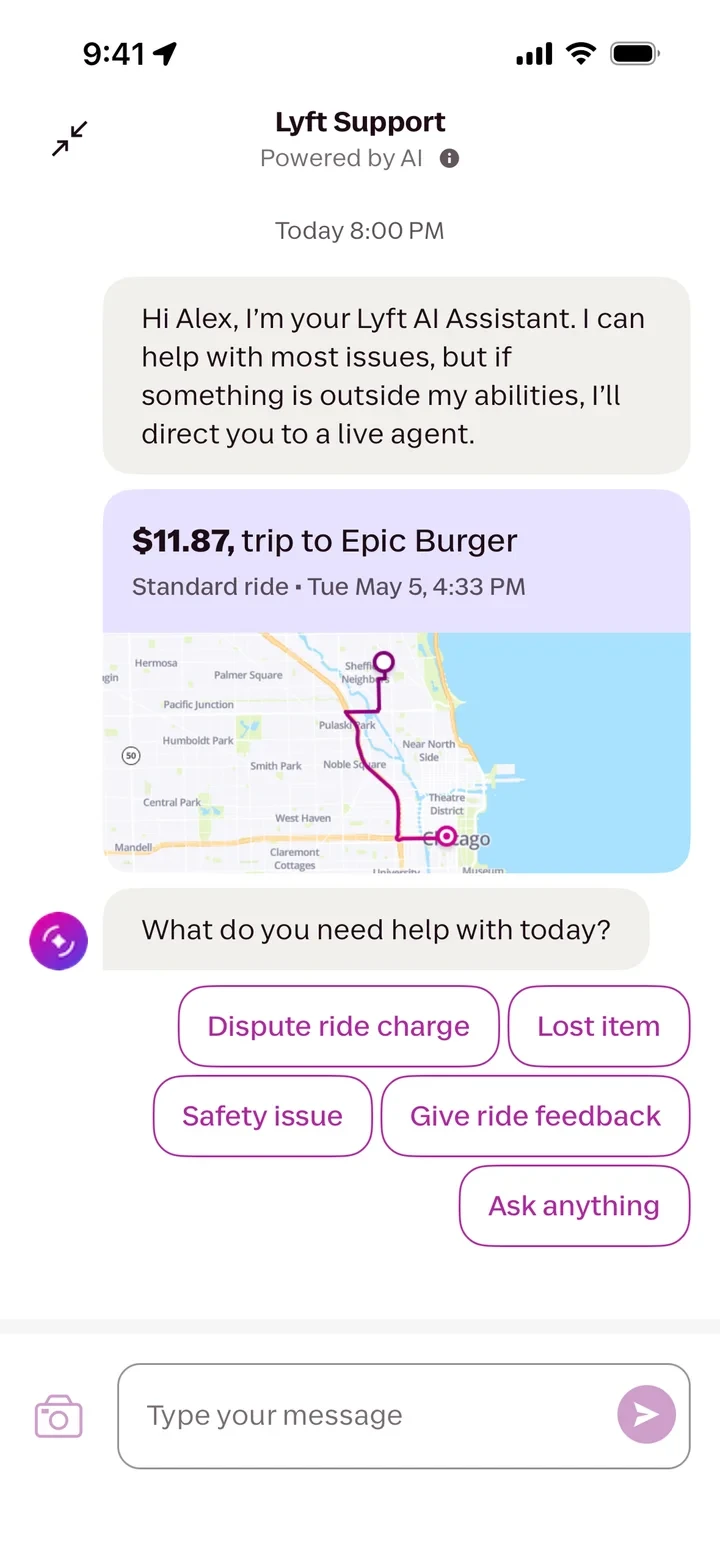
Lyft Support: an AI agent that promises a human
Support bots frustrate people when they feel like a wall. Lyft's opens by explaining the way out.
- 1"Lyft Support, Powered by AI" in the header. Clear before the first word.
- 2"…if something is outside my abilities, I'll direct you to a live agent." The handoff is promised up front.
- 3Your last trip as a card, with the fare, destination, time and map. It already knows what you probably need help with.
- 4Support topics as chips: Dispute ride charge, Lost item, Safety issue, Give ride feedback, Ask anything.
Build an AI support chat for [my app]. Header: "[App] Support" with a grey "Powered by AI" subline. First message from the assistant: a greeting by name, what it can help with, and "If something is outside my abilities, I'll direct you to a live agent." Then a card with the user's most recent [order/trip/booking]: price, title, date and a small map or image. Then "What do you need help with today?" and wrapping outline chips for the top support topics plus "Ask anything". Add a "Talk to a person" path that hands the thread to a human agent and shows a system line when it does.
The chatbot UI checklist
- Never show an empty box: a greeting, what the assistant can do, and 3–6 suggested prompts written for your users.
- Give it a name or a job title, and say what's powering it ("Powered by AI", "with [model]").
- Show progress while it works: thinking, steps, tools used, sources searched.
- Answer with components, not paragraphs: cards, tables, lists, the user's own data.
- Say what it couldn't do instead of quietly leaving it out.
- Add copy, thumbs up and thumbs down to every answer, and store the ratings.
- Cite sources whenever the answer comes from documents, posts or the web.
- Suggest the next question after each answer.
- Offer a human for support bots, and say so in the first message.
- Keep one small "can make mistakes" line under the input. Honest, not alarming.
Build a complete AI assistant chat screen for [my app] using my existing theme. Components: 1) Empty state: greeting "Hi, I'm [Name]", one line on what I can do, and 4 suggestion chips that send a message when tapped. 2) Message list: user messages as right-aligned bubbles, assistant messages full-width with markdown (headings, lists, tables). 3) While streaming: a collapsible "Thinking…" row that becomes "Thought for [n]s" and lists steps or tools used. 4) Under each assistant message: copy, thumbs up, thumbs down, retry; save ratings with the message id. 5) Sources row: favicons, "[n] sources" and a sheet listing them. 6) After each answer: 2–3 follow-up chips. 7) Rich cards: let the model return JSON blocks of type product, metric or list and render them as cards. 8) Input bar: + attach, text field "Ask [Name] anything", mic, send; a tiny "[Name] can make mistakes" line under it. 9) A "Talk to a person" option in the menu. Keep it responsive and accessible (focus states, labels on icon buttons).
Chatbot UI FAQ
What is a chatbot UI?
A chatbot UI is the interface around an AI or rule-based assistant: the empty state, message bubbles, the input bar, and everything that helps people trust and act on the answers, such as suggested prompts, sources, feedback buttons and rich cards.
What should a chatbot's empty state show?
Who the assistant is, what it can do, and a few suggested prompts to tap. 21 of the 33 apps we studied open with suggested prompts; the best ones, like Amazon Rufus, tie them to what the user is doing right now.
Should AI chat answers be plain text?
Usually not. 22 of 33 apps answer with rich UI: product cards, tables, charts or lists. Ask your model for structured output (JSON) and render it with components.
Do I need an "AI can make mistakes" disclaimer?
It's common (14 of 33 apps) and cheap to add. Keep it to one small line under the input, and use the assistant's name, like Oura's "Advisor can make mistakes."
How do I build a chatbot UI with Lovable, Bolt, v0 or Cursor?
Build it in pieces. Start with the empty state, then the message list, then streaming and the thinking indicator, then feedback and sources. Each example above has a prompt for one piece, and the starter prompt builds them all at once.
How we did this. We looked at 58 screens tagged as chatbot screens in 33 iOS apps, captured in 2026, and scored each app once per pattern if any of its chatbot screens showed it. Some apps' chat screens are support chats with a human team; we counted them because they share the same interface.
All product names belong to their owners. We show these screens to discuss design. No app on this page endorses this article. The small icons open each app's screens on UI Shots.